

Captions are now a must-have in social media, education, marketing, and business communication. Many viewers are silent viewers, and the message can only be understood through the text on the screen. Good captions can also provide accessibility, increase engagement, and help retain information without having to transcribe it manually. Pippit’s intelligent captioning and full video creation and editing tools are all in one creative platform, making it easier.
Why Captions Have Become Essential for Modern Video Content
Every day, modern viewers watch videos in a variety of environments, on a variety of devices. Many viewers turn off the sound when travelling, working, or when in public areas. Captions aid in comprehension of spoken information, without increasing the volume of the device. Captions are also useful for people with a hearing loss or language difficulties. Clear text facilitates understanding of complicated matters and technical explanations. Captions are well presented and support key messages and minimise misunderstandings. This uniformity will help give a neat look to any educational material, marketing, presentation, demo, or even social media videos, making them look more professional and credible.
How AI Automatically Generates Accurate Video Captions
Today, the technologies of speech recognition can accurately transcribe dialogue to time-synchronized text. AI video generator systems can identify patterns in speech, pauses, and synchronize captions with the video’s tempo. Multilingual content for broader reach is also supported with advanced language recognition capabilities. Intelligent segmentation takes the length of the conversation and chunks it up into easy-to-read caption blocks without overwhelming viewers. Automatic sync eliminates timing issues and maintains the flow of conversations. If it’s a question of wording, punctuation, or timing that needs fine-tuning, manual editing is still an option. This harmonious workflow helps save production time while ensuring high-quality captions for educational, promotional, and professional video production.
Caption Customization Features That Improve Video Presentation
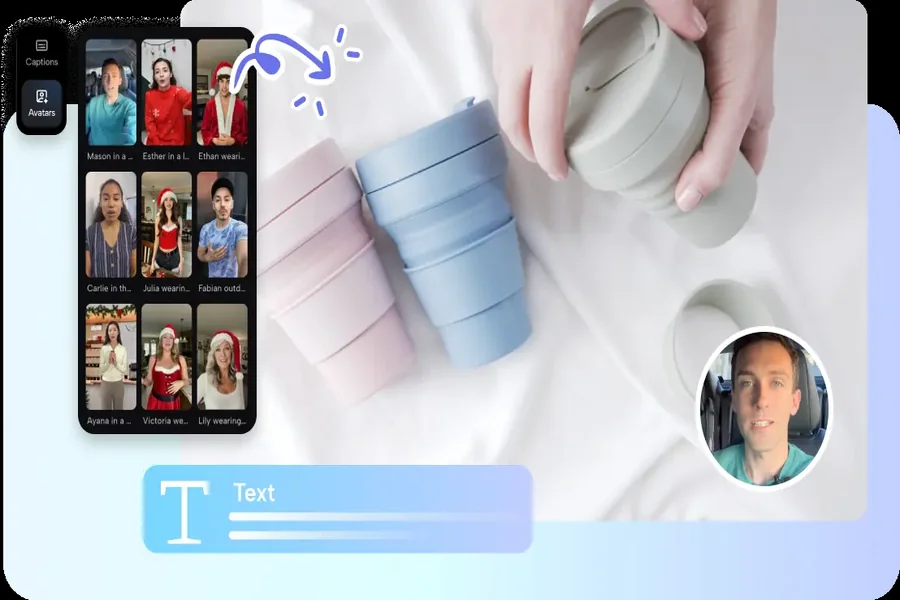
After careful customisation, automatic captions are more effective. Pippit’s flexible formatting options make it even easier to read, while maintaining the visual storytelling. Different font styles can be used to ensure consistency of branding within published materials. Change text colors for better readability with varying backgrounds and lighting. Captioning positions ensure that key images are not obscured when viewing. The size of the text can be adjusted for convenient reading on the smartphone, tablet, and desktop. Professional animation effects offer subtle movements, without distracting the viewers. Manual editing can be done to make word changes and timing corrections if more synchronization is required. Seedance 2.5 also provides creative video production by allowing compatible generation workflows that will seamlessly work with these caption customization features.
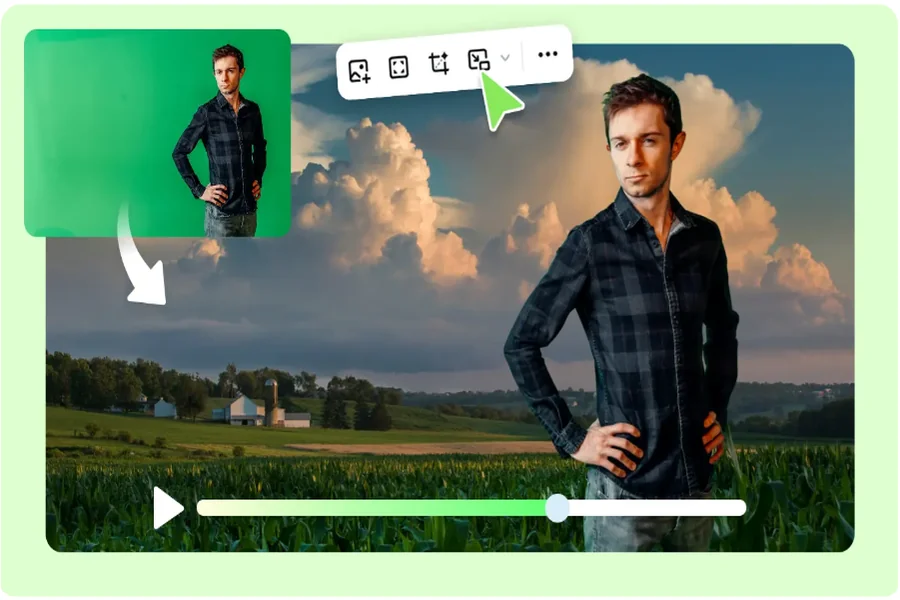
- Font Style Selection: Use fonts that are easy to read, visually identify the video, and are consistent across published videos.
- Text Color Adjustment: Enhance caption visibility in the presence of varying backgrounds while emphasising key information.
- Caption Positioning: Place captions properly so they do not cover any of the key visuals or critical aspects of the presentation.
- Text Size Control: Adjust the size of the captions for comfortable viewing on different display sizes.
- Animation Effects: Use subtle effects of animation to enhance flow without distracting viewers.
- Manual Caption Editing: Get the correct word-for-word captions and adjust the timing for accurate synchronization following automatic captioning.
How Pippit’s AI Video Generator Enhances Caption Creation
Pippit’s automated caption generation feature streamlines the captioning workflow by integrating it into video creation processes. Content is developed based on prompts, uploaded files, online links, images, or media assets already available. To promote videos, explainers, creative storytelling, or social media content, there are different models of Dreamina Seedance. Captions are easily integrated with AI voiceovers, transitions, visual enhancements, avatars, and pacing improvements. Editing tools are still available, and you can edit captions with ease in the intuitive interface without having to know much about editing. This built-in workflow cuts down on repetitive production processes and ensures uniform presentation for different types of video.
Steps to Auto-Generate Perfect Captions in Seconds with AI Video Generator
Step 1: Start your caption-ready video
- Sign up for Pippit using Google, TikTok, or Facebook account info.
- Open the “More” tab from the left menu and select “Video generator”.
- Choose an AI model like Dreamina Seedance 1.0, Dreamina Seedance 2.0, Dreamina Seedance 2.0 Fast, Dreamina Seedance 2.0 Mini, or Dreamina Seedance 2.5.
- Add a detailed prompt explaining the video style and caption requirements.
- Select video length, language, subtitles, and aspect ratio.
- Click “+” to upload your video or reference media from your device, phone, Dropbox, or a link. You can also select assets if you don’t have reference media.
- Click “Generate” to create your video.
Step 2: Generate captions automatically
- After clicking “Generate”, Pippit’s AI video generator creates your video and automatically applies caption elements.
- The AI handles transitions, pacing, captions, avatars, voice, lyrics, and visual enhancements.
- Check the generated video draft and review the captions.
Step 3: Edit and finalize captions
- Click the “Download” tab to save your video or choose “Regenerate”. Use the “Edit more” tab to customize your captions and video.
- Modify captions manually, add text, and adjust size, color, alignment, filters, and effects.
- Add music, remove backgrounds, and improve visuals.
- Click “Export” when finished.
- Select “Publish” for TikTok, Instagram, or Facebook, or click “Download” with your desired format, resolution, frame rate, and quality.
Best Practices for Writing AI-Friendly Video Scripts
Structured scripts result in more clear captions and better viewer comprehension. Use of conversational language aids readability and will sound natural when narrating. More in sync with spoken delivery and caption timing are short sentences. The removal of filler words can help to ensure that the messages are focused and concise. The logical organization helps to take viewers through each topic without creating confusion. Consistent terminology helps to clarify, especially in educational/instructional/technical videos. The thoroughness of script preparation also decreases the amount of caption corrections in the editing process, which yields cleaner text with much less manual intervention throughout the production process, since the captions are generated by automated systems.
AI Editing Tools That Complement Automatic Caption Generation
This is made even better with the ability to edit the captions flexibly. Trimming will help you not lose sync if you’re cutting out footage that is not needed. Changes in visual layout include not having captions obscure important graphics, products, or presenters. Creative changes will be easy with prompt-based editing – no extensive manual changes. The video resizing maintains the caption visibility from landscape, portrait, and square settings across platforms. Other visuals add to the quality of the presentation and help to get the message across. These editing tools create quality content that can be easily consumed across platforms, in various environments and by various audiences, with an easy production process.
Maximizing Caption Effectiveness Across Different Video Formats
The amount and type of captioning should be tailored to the video’s intent and audience. Instructional words are clear and consistent, and educational tutorials are appropriate. Business words and business communication in business presentations should be correct. Coordinated explanations about features facilitate understanding of product demonstrations. The short-form videos on social media are attention grabbers, and the caption is the key to getting important information across. Informational explainers are used throughout each segment, repeating key facts, to keep the attention of the audience. Consistent formatting, easy-to-read design, and syncing help ensure that viewers are more engaged—and more accessible to all kinds of content and publishing platforms.
Conclusion
With the video era that we are living in, AI-generated captions can streamline the captioning process, improve accessibility, understanding, and engagement on platforms. Well-sync captions also add to the professionalism and the quality of communication for educational, promotional, and business content. By automating caption creation with AI technology and offering flexible editing features, Pippit enables creators to streamline the video production process while improving content quality. Built-in creative features make it easier to create content, and it can deliver high-quality content for various audiences and platforms.

David Corner is a names expert with 4 years of experience in researching name meanings, origins, and cultural significance. He is currently working with Nameshives.com, where he contributes to creating insightful and meaningful name content for a global audience.
